What Is Obtainium?
This post was last edited 2 weeks, 1 day ago.
 Image source: Github
Obtainium is an Android application that lets you download, manage and update apps directly from their source pages. I installed Obtainium recently after watching a couple of how-to videos by Side of Burritos, who makes excellent tech tutorials. I installed Obtainium in order to simplify how I manage apps on my phone and to have greater control over how my apps are updated.
Before Obtainium
Before using Obtainium, I installed and updated my mostly open source apps through the F-Droid, Aurora Store and a few others, like Accrescent, Google Play and GrapheneOS's own App Store.
I managed these apps from the Owner profile in GrapheneOS (a private and secure operate mobile operating system), and pushed them to various user profiles for different purposes: daily use, banking and transactions, etc. I learned about this from Side of Burritos in his video GrapheneOS: After 3 Years, This Is How I Install Apps on My “De-Googled” Phone . I will explore my own version of a multi-user Android setup in a future post.
Managing apps from five different stores can a confusing business. Each app store picks up on the presence of an app on your device and tries to manage it. The reason I use so many different app stores is that
- I want to use as many open source alternatives as possible
- These apps tend to be spread over different stores
- Some apps I need are not available on open source stores
Aurora Store
Aurora Store is an anonymous front-end to the Google Play Store. It logs you in with a randomly created Google account, keeping you and your phone anonymous. It's a setup that works well in general, though not all mainstream apps will happily work under an Aurora Store account. In such cases, you will still need to use Google's Play Store.
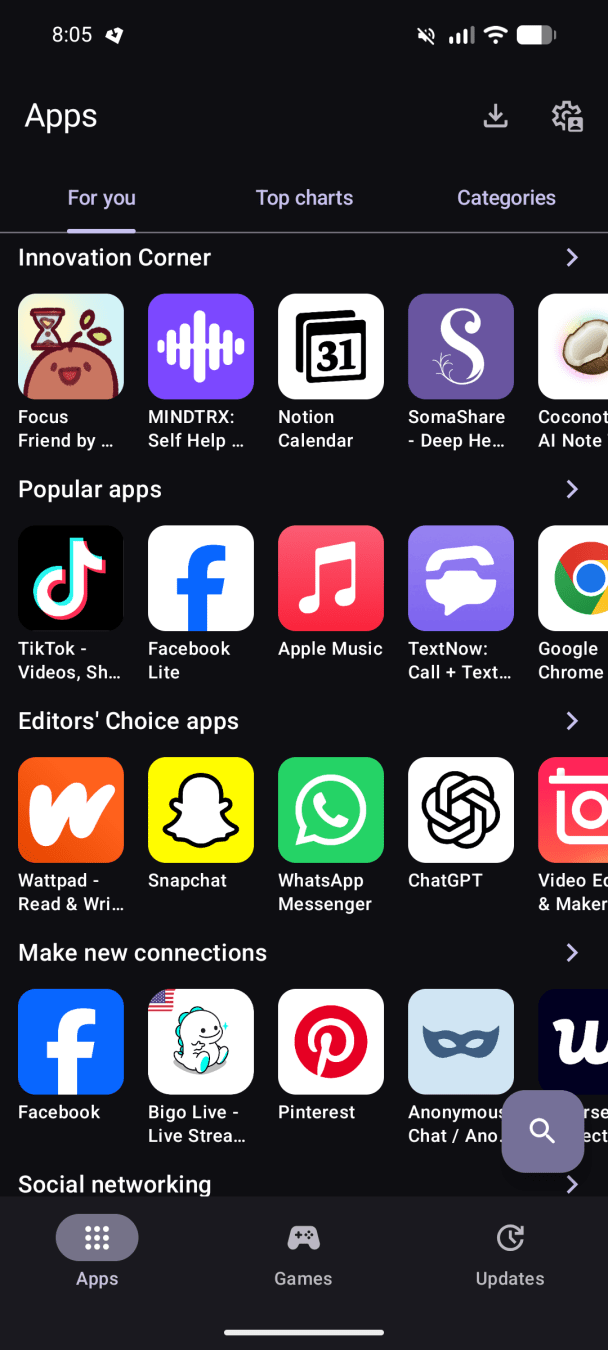
Aurora Store's main page
A lot of current alternative Android mobile operating systems tout the Aurora Store as their default method for managing your apps. I have several concerns with this. One is that your phone is dependent on a currently-working clever trick that could fall from grace with Google at any point, rendering your whole setup stuck. It doesn't take a great deal of imagination to see that perhaps Google is not delighted with many thousands of users tricking the Play Store into serving their needs, while staying anonymous, given that Google's main business model is personal data collection.
A second concern I have with Aurora is that I don't fully understand how the anonymous log in system operates behind the scenes. I tried to create a real Google account the other day and got stuck on a QR code scanning screen, where a smartphone with active SIM card was required to continue. How is Aurora creating all these dummy profiles? Also, am I sharing my anonymous Google login with other Aurora Store users, and if so, how many?
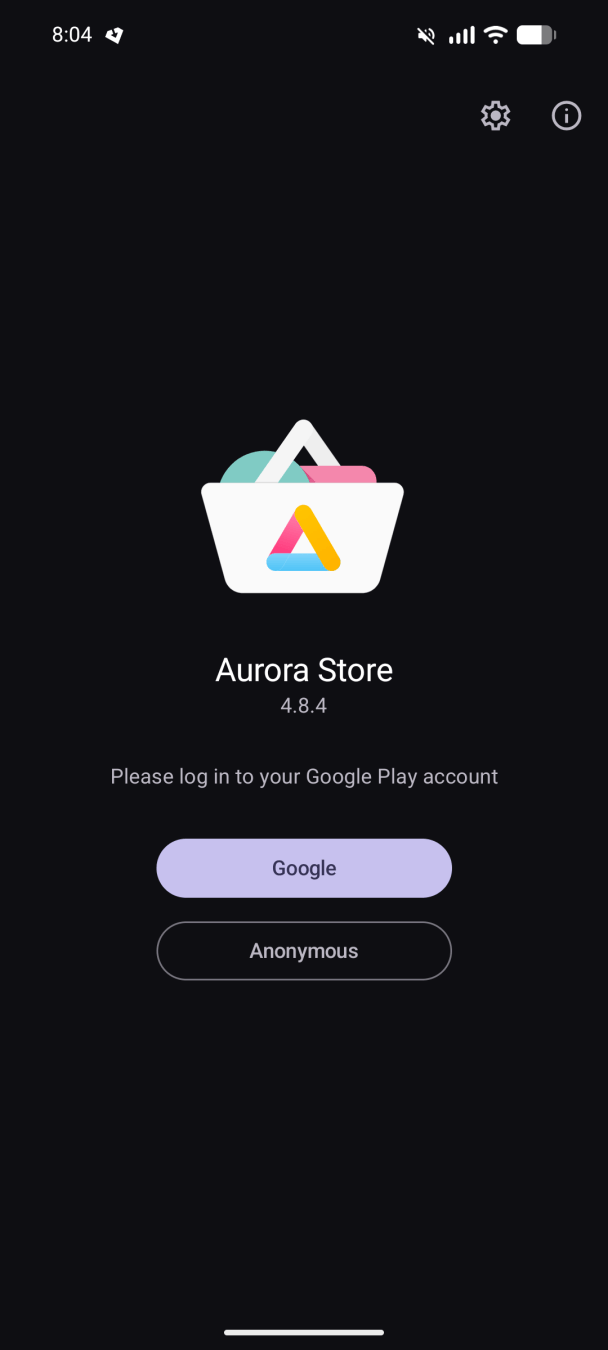
Aurora Store anonymous login
In short, the Aurora Store is a great solution for anyone seeking to avoid signing into Google while still using apps available on Google Play, but it doesn't feel like a robust long-term solution. It seems risky that alternative mobile OSes rely on Aurora Store for their entire workflow.
F-Droid
F-Droid is a project that collects and vets open source apps. It has been very useful to me in helping me find alternative apps, especially as I want to get away from reliance on Google Play/Aurora Store as much as possible. Over the years, I've gotten used to using open source alternatives such as Feeder for news, AntennaPod for podcasts, and recently OpenTracks for hiking, all of which can be discovered, managed and updated through F-Droid.
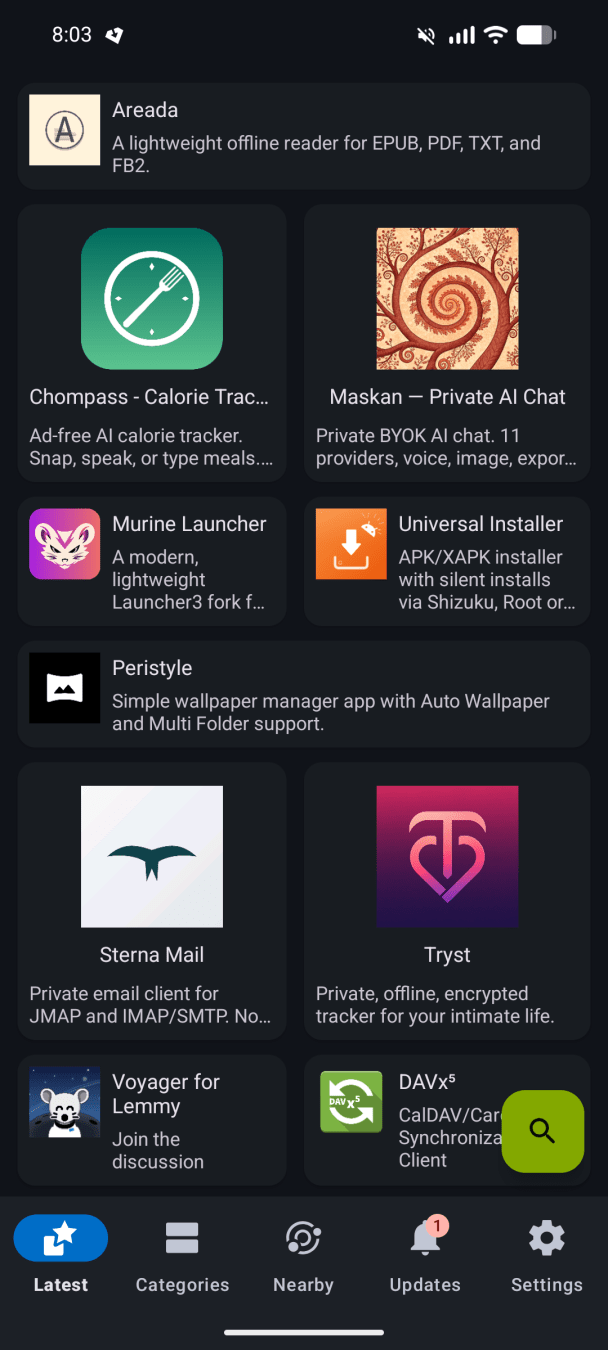
F-Droid's search page
One of the things I really appreciate about F-Droid is the information they give you about the apps, which includes where the source code is hosted, who made the app, and what trackers, if any, are active. In this way, F-Droid acts as a search tool for 'alternative-to' apps, with screenshots of the app, information about the app and links to external sources all in one place. Having F-Droid installed on your device makes it very easy to test out open source alternatives.
Side of Burritos has published a video that criticises F-Droid for using older Android development kits. The video is four years old at the time of writing, and some commenters suggest that these criticisms have since been addressed by F-Droid. I'm not technical enough to comment further on this. Some people recommend Droid-ify instead.
GrapheneOS's App Store, Accrescent and Google Play
When you install GrapheneOS, it comes with its own App Store. Given GrapheneOS's high standards of security and privacy, I feel I can trust any app on this store. The selection is limited however. I use it to manage Graphene's default apps such as Camera, Messaging, PDF Viewer and Vanadium, Graphene's web browser. I also use the App Store to manage a Google environment for one of my users. This is so that I can get banking apps to work on a de-Googled phone.
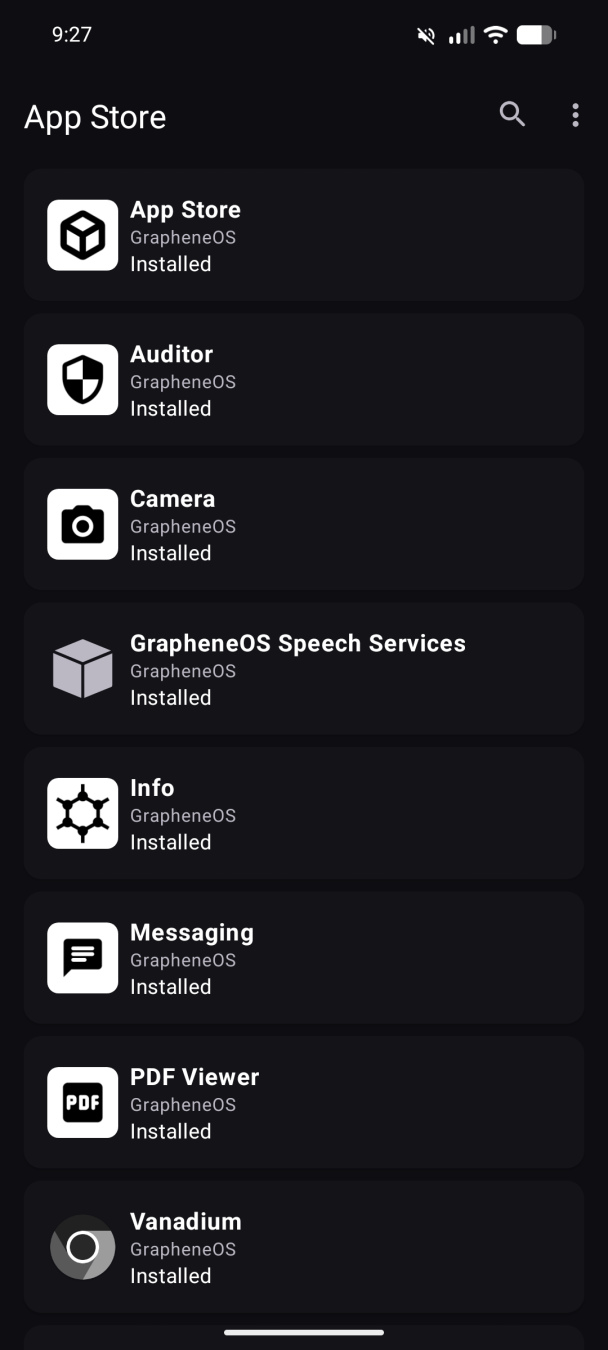
GrapheneOS's App Store
Accrescent is an Android app store project with a focus on security and privacy. It has a limited set of apps, but the number is growing. Following Side of Burritos' advice, I look for apps on Accrescent first, and then look elsewhere. For example, Accrescent has Organic Maps and Cake Wallet, both of which I've used. The Accrescent store can be installed via GrapheneOS's App Store, and this is what's recommended on Accrescent's website.
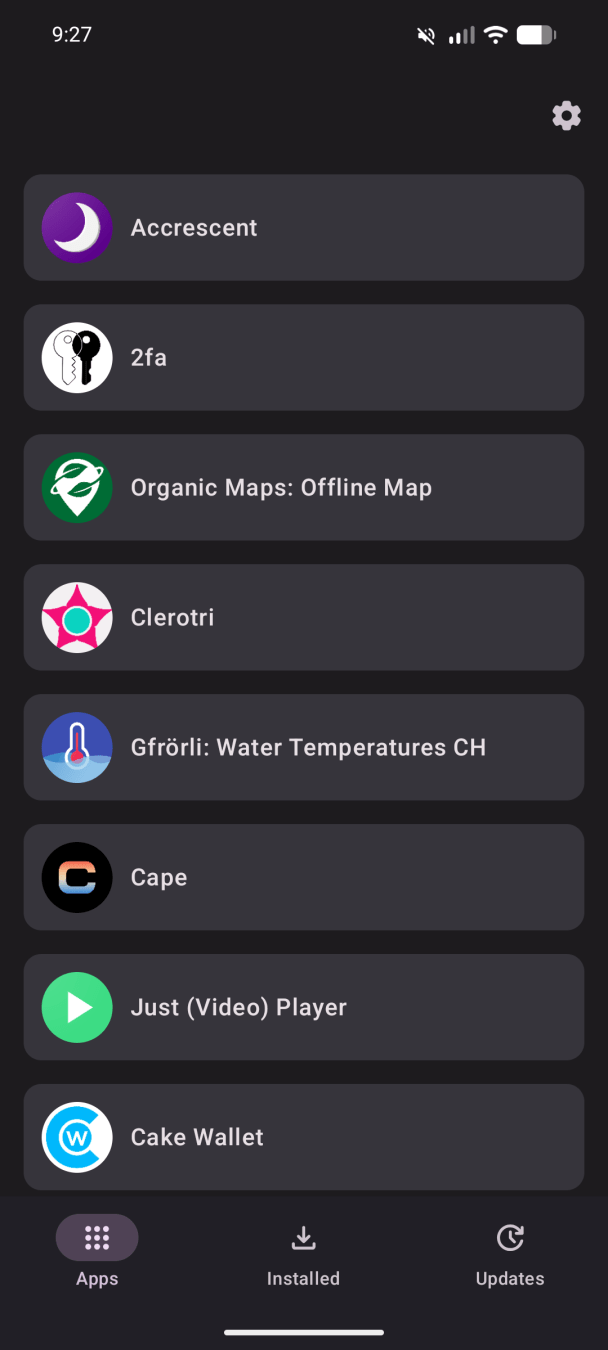
Accrescent's user interface
Finally, some applications only work when installed via Google Play, in an environment that has Google Services. Banking apps tend not to allow you to install them in any other environment, as well as government ID apps, and a strange collection of random apps (the McDonalds app, I'm told) that just have overly stringent security settings.
Reducing app stores
I have been using this five-store setup for a number of years. This was in order to avoid relying on Google Play where possible. It works OK, but as mentioned above, I have concerns about the long-term reliability of something like Aurora Store. It also can be confusing to manage all these different update methods, especially when using multiple users on Android.
So I decided to reduce my app store setup, and stop using F-Droid and Aurora. My current setup entails
- GrapheneOS's App Store - for managing default applications
- Accrescent - interesting privacy project; I could remove this later to simplify the setup
- Obtainium - the bulk of my apps are managed here
On a separate user profile, I have Google Play and Google Services, and this is for all apps that I am not able to find using Obtainium or that won't work without Google.
Setting up Obtainium
It is not difficult to manage your apps via Obtainium, but the initial setup takes time. I recommend the Side of Burritos tutorial for this, and I'd set aside maybe one or two evenings to reorganise how apps are managed on your device. Once you've organised Obtainium to your liking and you've created a backup of your configuration, it's more or less 'set and forget'. The apps can be updated and installed automatically in the background.
Here's what I did to get Obtainium working on my phone:
Mapping out existing apps
Whether you use one or more profiles, I recommend writing down all the apps you use, along with the app store that updates each. I found it easiest to do this on A4 paper. This overview helped me decide which apps to delete. Reducing the number of apps you have installed is generally good for privacy and security, as each additional app introduces potential new connections to outside sources and security weaknesses.Back up and export
It's key to consider which apps contain data that would be difficult or time-consuming to reintroduce after a clean install. In my case, I exported databases for my media and news apps (Feeder, AntennaPod) so that I wouldn't have to manually add those feeds later. I also backed up my Signal account just in case, and I exported things like my Aegis authenticator data and my Cake Wallet crypto wallets. I just saved these backups in Downloads or Documents on the device, though it doesn't hurt to save extra copies in cloud storage. Also make sure to write down or save any encryption keys that you'll need to access such backups when importing them!Uninstall apps
I was able to keep my Signal app as it was, but for most other apps, transfering management to Obtainium while keeping the apps on my phone led to errors. The version of the app on your phone, installed via a store, may not match the source page version that you assign Obtainium to use. I took a trial-and-error approach with each app, but looking back, it definitely would have been easier to delete all the apps I was handing over to Obtainium at the start. Make sure not to delete apps you're already managing from other app stores, and, if you use multiple profiles on Android like I do, remember to uninstall the apps in every profile, including disabled versions of apps, which are hidden from view.Uninstall app stores
Once you've deleted all apps that have a dependency on the app stores you used before, you can go ahead and uninstall the app stores themselves. In my case that was Aurora and F-Droid, as well as Play Store, as I moved that to it's own contained profile.Add apps to Obtainium
This is the part that's going to take some time, but it is not difficult to do. Using your written apps map (see step 1) for reference, you'll need to find the web pages where the source code is published for each app you want to install. Fortunately, Obtainium has a search feature that helps you and allows you to limit your search to sources of your choice (Github, F-Droid, etc.). You can just type the name of the app in the search bar, rather than copy and paste URLs manually.
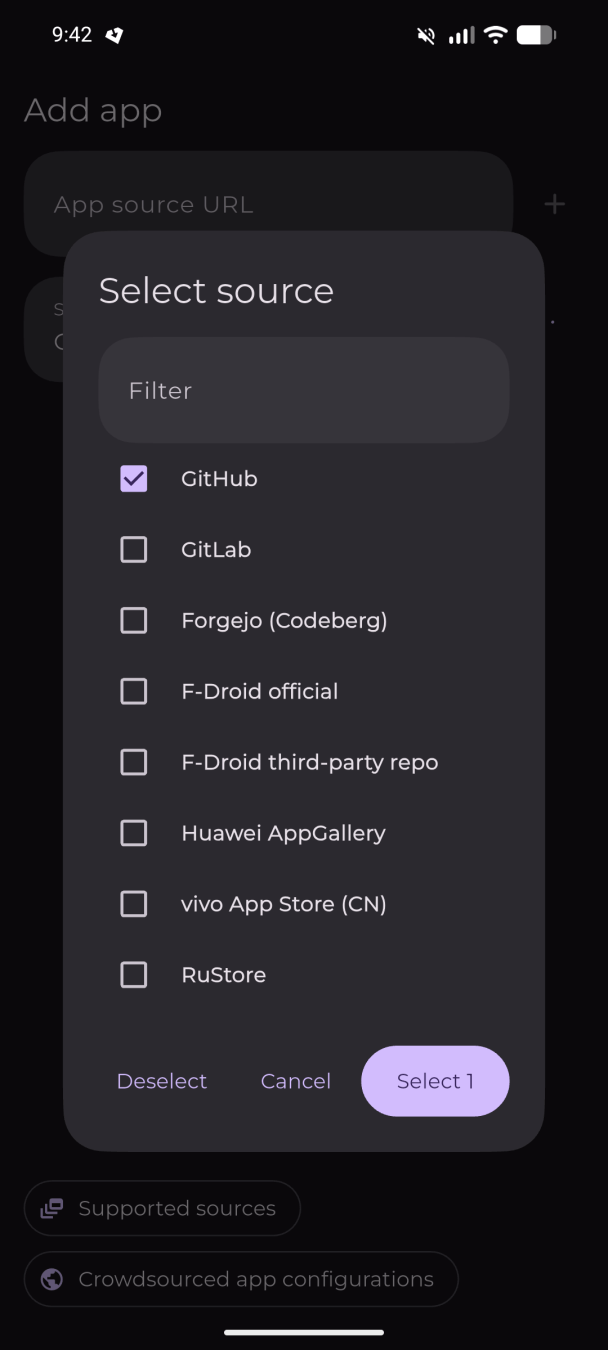
Obtainium's Select source menu
In most cases, selecting Github did the trick for me. The few instances where that didn't work, I used F-Droid's repository instead, as per Side of Burrito's tutorial video. Some developers publish their source app directly on F-Droid and don't have a downloadable copy on Github. Some apps, like Ente Photos, even have their own 'Get it on Obtainium' button, which, in Ente's case was useful, because they have several apps, and the Github page ended up auto-downloading Ente Locker instead of Photos. Remember that you can always copy a link to a button like that by right-clicking on the button and copying the URL that way.
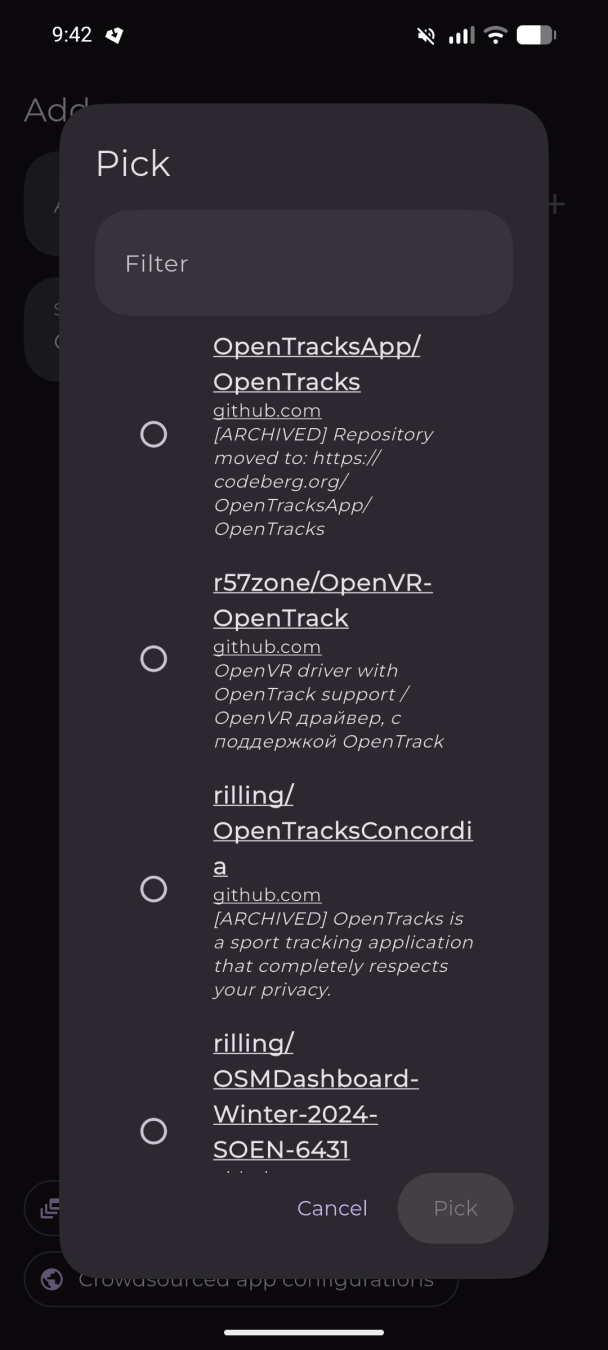
Pick your source & verify by checking the weblinks
You'll need to verify that the source page looks correct; I did this by clicking on the hyperlink to the source within Obtainium. This was usually the top result, but not always. A search on Obtainium will give you a list of source page options. I just checked that the Github page looked official and legitimate before selecting that download. This is a weakeness in the method, as a scammer could set up a source page look-alike.
Once you've found the source page you want to install from, you can add the app to Obtainium by pressing the small '+' symbol. You can then download and/or update the app, direct from the source page. One small criticism I have here is that the symbol for actually adding the app could either me more prominent or just be a button with 'add app'.

Obtainium's Add app menu
If, like me, you work with multiple profiles, then you'll have to push the apps to the relevant user profiles.
Sign in and check apps
The next step is to sign back into each app, import backups if necessary, and check the app is working. You should see it listed in Obtainium's main interface, just like you would in an app store. Obtainium is like a custom-made app store in this way. Any errors I noticed in the updates the following week were usually the result of me having left an old version of the app installed somewhere on the device. Uninstalling the active versions of the app and then installing afresh from Obtainium solved those issues.Export your Obtainium database
The last step is to export all the work you've done setting up Obtainium. This is so that with a clean install of your operating system, or if you were to lose your phone, you won't have to go through this whole process again.

Obtainium's Import/export menu
You can export by picking an export directory. I toggled 'Automatically export on changes' to ON as well, so any apps I add at a later stage will also be in the export file. Pressing the upward pointing arrow left of 'Obtainium export' then exports the file. It's a good idea to save a copy of this file in cloud storage.
Issues
While Obtainium has provided a smooth user experience so far, I did run into a couple of issues I want to highlight here for anyone considering switching over.
The best overall method for avoiding such issues is to factory reset the entire operating system from the start and install all your apps Obtainium from scratch. A second method is to uninstall all the apps you want to switch over to Obtainium to avoid errors and conflicts, and then start over with Obtainium.
One thing to pay particular attention to is disabled apps. Disabled apps are not visible on your home screen, but you can find them by going to Settings - Apps. If you are getting puzzling error messages about a particular app in Obtainium, it might be worth checking here. Uninstalling the app and then doing a fresh install via Obtainium solves most problems.
When you run several app stores or app managers on the same system, they tend to all try to claim all the apps they can see as their own. This can lead to version conflicts, for example, if Google Play tries to update an app I previously installed in Obtainium.
For example, I have several user profiles, and I forgot about one instance of Tuta Calendar on one of the profiles when I moved the installation to Obtainium. This led to error messages when I tried to update the app. Finding the rogue app and uninstalling it first, and then installing it via Obtainium resolved the issue.
A second problem I've run into is that some companies provide download links to more than one app on their Github page. For example, when I try to add Tuta Mail via Tutoa's Github page, Obtainium tells me "App already added: Tuta Calendar". I don't know how to tell Obtainium there are two separate downloads on the same Github page, so I'll update Tuta Mail via in Obtainium via the F-Droid link for now. I can imagine this could get complicated with companies like Ente and Proton that offer multiple products.
A third issue I've run into is that mainstream apps are hard to find using Obtainium. A music app like Tidal doesn't provide a source page where everyone can download the APK; you have to go via Google Play or the iOS App Store. I feel wary of APK hosting sites, because then I'm not sure what I'll be downloading.
I could create a standalone web app for Tidal using my browser, but I've found logging into Tidal's web player cumbersome.
My solution here is to just install Tidal directly from Google's Play Store on a compartmentalised user profile on GrapheneOS, along with my banking apps and other apps that require Google Services. This does mean I have to switch user profiles to listen to my music, but it simplifies how the app is managed. A bonus with GrapheneOS is that you can completely shut down a secondary user profile with one click, shutting down all Google Services along with it.
Lastly, it gets a little confusing when you have apps installed via Obtainium that Google Play tries to automatically update. My solution to that is to turn off auto-updates in the Google Play Store and just check in every week or so for manual updates. This way, I can ignore Tuta updates via Google Play and manage those via Obtainium instead.
Wrapping up
After one week of use, it feels clean and simple to manage most of my phone apps through Obtainium. The apps can update themselves, though I can manually push updates through as well. I am also glad not to have to use Aurora's shared anonymous logins anymore, or be dependent on a system that doesn't feel totally future-proof. The apps that I downloaded in Obtainium via F-Droid's repository are labelled with 'By F-droid official'. The others get the site name, or even the developer's online name.
In a future article, I will describe my multi-user Android setup in more detail and explain how I use Google's Play Store in such an environment.
Updates
13 October 2026
One reader kindly contacted me on Mastodon and suggested using an app verifyer to address the trust issue. He gave these two examples:
I need to try these myself but wanted to add this for interested readers.
Documentation
Side of Burritos blog post on Obtainium
Side of Burritos Obtainium video 2023
-----Discuss on Mastodon-----
Find me on Mastodon.